
Note: Scroll down this article to download the terrafom files in zip format. |
| Important: Use "terraform apply -parallelism=1" when implementing this template to avoid az cli rate limits. |
| Important: Routed traffic via Azure LB to the CSC, requires CSC Mux version 6.0.10 or higher. |
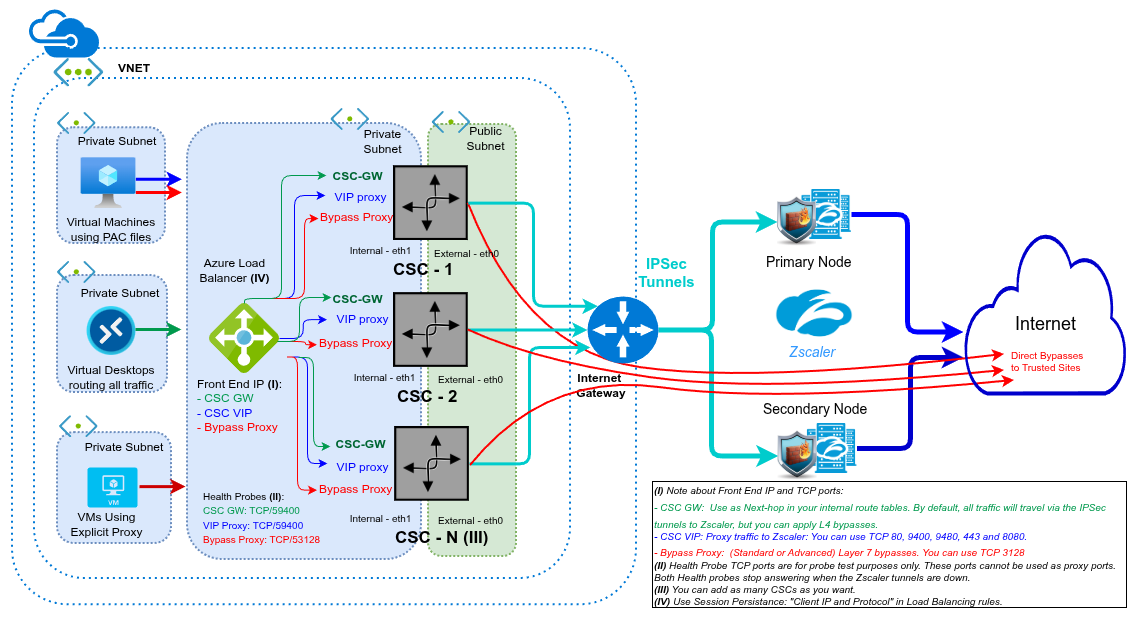
You can balance the CSC Mux using Azure Load Balancer. Chapter 13 of the Administration Guide shows how to use the Azure Load Balancer's frontend IPs for traffic to Zscaler (routed and proxied) and bypassed (routed and proxied: Standard/Advanced).
Network Diagram:
Readme file:
Azure Internal Load Balancer for Cloud Security Connector (CSC)
This Terraform module dynamically provisions an Azure Standard Internal Load Balancer (ILB) designed specifically to distribute traffic across a pool of Cloud Security Connector (CSC) Mux for Zscaler.
It supports scaling from 2 to 10 instances and allows you to toggle different architectural modes (Routed Gateway, Proxied VIP/Bypass, or both) without altering the core Terraform code (main.tf).
Architecture & Deployment Modes
You can deploy the Load Balancer in one of three modes by adjusting the boolean toggles in your terraform.auto.tfvars file:
- GW Only (Routed Mode):
enable_gw = true,enable_vip_bypass = false (Routed mode requires CSC Mux version 6.0.10 or higher.)- Creates an HA Ports rule (Protocol: All, Port: 0) to act as a "Next-Hop" gateway for User Defined Routes (UDRs).
- Uses NIC-based backend associations to ensure the Azure SDN fabric can successfully resolve MAC addresses for transparently forwarding
0.0.0.0/0routed traffic.
- VIP/Bypass Only (Proxied Mode):
enable_gw = false,enable_vip_bypass = true- Creates standard TCP load balancing rules for specific ports (TCP 80 for VIP, TCP 3128 for Bypass).
- Uses standard IP-based backend pools.
- All Features:
enable_gw = true,enable_vip_bypass = true- Deploys all frontends, backend pools, health probes, and rules.
Prerequisites
Before deploying, ensure you have the following existing resources in Azure:
- A Resource Group for the Load Balancer.
- An existing Virtual Network (VNet) and Subnet (must be the same subnet where the CSC internal interfaces reside).
- 2 to 10 pre-deployed CSC Network Virtual Appliances.
Configuration
All configurations are driven by the terraform.auto.tfvars file. You must replace the <placeholder> values with your actual Azure resource names and IP addresses.
Important Configuration Rules:
- Scale Match: The lists for
csc_vip_ips,csc_bypass_ips,csc_internal_nic_names, andcsc_ip_config_namesmust contain exactly the number of items specified incsc_count. - Static IPs: Assign your frontend IPs static values that are easy to identify within your subnet (e.g., ending in
.100,.101,.102). - NIC Names: For the GW backend pool to function, you must provide the exact Azure Resource Name of the CSC's internal network interface (usually named
<hostname>-eth1-<value>).
Execution (CRITICAL)
Azure Resource Manager (ARM) restricts the number of simultaneous updates you can perform on a single Load Balancer's backend address pool. If Terraform attempts to attach all IPs concurrently, Azure will return a 409 Conflict or CanceledAndSupersededDueToAnotherOperation error.
To prevent this, you MUST run your apply command with the parallelism flag set to 1:
terraform init terraform plan terraform apply -parallelism=1 |
Troubleshooting & Maintenance
1. Health Probes
This template uses the modern probe_threshold parameter (set to 3 consecutive failures) rather than the deprecated numberOfProbes. Unfortunately, the value of --probe-threshold is not visible on the Azure Portal. You must use the Azure CLI.
Example view:
az network lb probe show \ --resource-group <load balancer Resource Group> \ --lb-name <load balancer Name> \ --name <Health Probe Name> |
2. State Drift on Destruction
If you manually delete the CSC appliances from the Azure Portal before destroying this Load Balancer via Terraform, Terraform will fail during its initial state refresh because it cannot find the NICs.
To fix this and successfully destroy the Load Balancer:
- Open
terraform.auto.tfvars. - Temporarily set
enable_gw = false. - Run
terraform destroy -parallelism=1. (This skips the NIC lookups entirely).